
If you’re running Linux Mint 22 or Ubuntu 24.04 or newer with an NVIDIA GeForce GT 750M and finding yourself stuck without proper graphics drivers, you’re not alone. This Kepler-era GPU, which first debuted in 2012, has become increasingly challenging to set up on modern Linux distributions — a situation we explored in-depth in our 2026 Kepler Linux Insight. This comprehensive guide will walk you through the process of reviving your Kepler hardware on modern Mint or Ubuntu.
Part 1: Installation (Core Setup)
TL;DR
The NVIDIA GeForce GT 750M no longer works with kernel 6.14 on Linux Mint 22 because DKMS cannot build the required driver modules for newer kernels. The solution requires downgrading to kernel 6.8.0-90-generic and installing nvidia-driver-470. This combination provides stable, long-term support through April 2029. For laptops with hybrid graphics, configure PRIME to use on-demand mode after installation. The process takes approximately thirty to forty-five minutes (including download time and system reboots) and requires disabling Secure Boot in your UEFI settings beforehand.
Before You Start
Back up any important files and/or a full system image before beginning. While this process is generally safe, any time you modify kernel versions or install graphics drivers, there is a small risk of system instability. Having a recent backup plus a system snapshot or disk image ensures you can recover quickly if something unexpected occurs.
Understanding the Problem
The GT 750M is based on NVIDIA’s GK107M architecture, part of the Kepler generation that defined mobile gaming from 2012 to 2014. While this GPU was quite capable in its day, NVIDIA officially ended mainstream driver support for Kepler GPUs in October 2021, moving them to legacy driver branches. The GT 750M now falls under the legacy driver 390 or 470 series support.
Starting in 2022, newer versions of Ubuntu began phasing out support for these older GPUs, creating compatibility issues with modern kernels and Hardware Enablement (HWE) stacks. Since Linux Mint is built on Ubuntu’s latest LTS releases, Mint users encounter the same problems. The Driver Manager (Additional and proprietary drivers) won’t detect your GPU, and even if you try to manually install drivers, they often fail to build.
The core issue is straightforward: the Driver Manager (Mint) and Additional Drivers (Ubuntu) tools only show drivers when compatible packages exist in the repository for your current kernel version. When those packages are marked incompatible with newer kernels or simply aren’t available, nothing shows up. This is precisely what’s happening with kernel 6.14 and the GT 750M.
The Solution: Kernel Downgrade
The most reliable approach to getting your GT 750M working on Linux Mint 22 is to downgrade your kernel to a compatible version. Specifically, we’ll be moving from kernel 6.14 down to kernel 6.8, which is the LTS (Long Term Support) kernel for Ubuntu 24.04. At the time of writing, I’m rolling back from 6.14.0-37 to 6.8.0-90 (covered by support until April 2029). While kernel 6.11 may function as well, the safest choice for the GT 750M remains kernel 6.8.
For optimal performance, this guide uses nvidia-driver-470 rather than nvidia-driver-390. Both are legacy drivers, but the 470 series generally offers better performance and more recent bug fixes for Kepler GPUs.
Before diving into the installation, take a moment to get a full technical overview of Kepler’s support landscape in 2026. This provides crucial context on why these legacy drivers require such specific handling today and explores alternative solutions that may be more effective for certain specialized scenarios.
And before we begin, I want to be thorough with this guide so anyone facing these issues can successfully configure their system while understanding exactly what they’re doing. This might make the guide a bit lengthy, but it’s worth it to avoid confusion and potential system issues.
Step 1: Check Your Current System Status
Verify Your Current Kernel Version
The quickest way to check your kernel version is through the terminal:
uname -r
You’ll likely see something like 6.14.0-37-generic. This is what we need to change, as DKMS (Dynamic Kernel Module Support) won’t successfully build NVIDIA modules for kernel 6.14, causing both nvidia-driver-390 and nvidia-driver-470 to fail during configuration.
Alternatively, you can use the neofetch command, which displays not only the kernel version but also a wide range of useful system information. Keep in mind that neofetch may need to be installed first, whereas uname -r is available by default and sufficient if you only want to check the kernel version.
For a more detailed view of all installed kernel images and headers:
dpkg --list | grep linux-image
dpkg --list | grep linux-headers
The linux-image packages contain the actual kernel binaries, while linux-headers are header files used when compiling modules or drivers (necessary for graphics drivers, VirtualBox, DKMS, etc.).
Optional: To see detailed version and repository information for your current kernel:
apt policy linux-image-$(uname -r)
If you prefer a GUI approach on Linux Mint, open the Update Manager, then navigate to View > Linux Kernels to see detailed information about your current kernel and other supported versions.
That said, if you’re a true Linux user, embrace the command line — it’s your friend.
Check for Existing NVIDIA Packages and DKMS Status
First, identify your GPU and its PCI ID:
lspci -nn | grep -i nvidia
If you’ve previously attempted to install drivers, check what NVIDIA packages are currently in your system:
dpkg -l | grep -i nvidia
Check the DKMS status to see which modules have been built successfully or failed:
sudo dkms status
Verify Secure Boot Status
This step is critical. If Secure Boot is enabled, it will prevent unsigned kernel modules from loading, even if DKMS reports them as installed.
sudo mokutil --sb-state
If you see “SecureBoot disabled,” you’re good to proceed. If it shows “enabled,” you need to restart your computer, enter the BIOS/UEFI settings, and disable Secure Boot before continuing.
Important caveat: You can technically keep Secure Boot enabled, but you’ll need to sign and enroll the NVIDIA driver modules using MOK (Machine Owner Key). This involves generating keys, signing the .ko modules, importing the keys with mokutil --import, and enrolling them through the MOK manager during reboot. This process is complex and beyond the scope of this guide. For most users, disabling Secure Boot is the simpler approach.
Step 2: Clean Your System
Before installing new drivers, remove any existing NVIDIA packages to prevent conflicts:
sudo apt remove --purge '^nvidia-.*'
sudo apt autoremove
sudo apt autoclean
Alternatively, you can use:
sudo apt purge '^nvidia-.*'
sudo apt autoremove --purge
If you’ve previously attempted DKMS builds that failed, reset the driver stack:
sudo rm -rf /var/lib/dkms/nvidia
sudo rm -rf /usr/src/nvidia-*
Reboot your system after cleaning:
sudo reboot
Step 3: Install Kernel 6.8
As mentioned earlier, we’re targeting kernel 6.8 for maximum compatibility with the GT 750M.
Method 1: Install via APT (Recommended)
The simplest approach is to install the officially supported kernel 6.8.0-90-generic, which receives long-term support until April 2029:
sudo apt install linux-image-generic linux-headers-generic
That’s it — this command installs both the kernel image and headers needed for DKMS to build the NVIDIA modules.
If you previously installed the mainline 6.8.0-060800 version from kernel.ubuntu.com, you should remove it first:
sudo apt purge linux-image-6.8.0-060800-generic
sudo apt purge linux-headers-6.8.0-060800-generic
sudo apt autoremove --purge
If you haven’t, you can skip this step.
⚠️ Note:
Only do this if 6.8.0-060800 is NOT your currently running kernel.
Method 2: Mainline Kernel (Alternative)
While you can download kernel 6.8 from the Ubuntu Mainline PPA, this approach is no longer recommended as these mainline kernels don’t receive the same level of long‑term support as the official Ubuntu kernels. If you have a specific reason to use a mainline build, then you would need to download four .deb packages (linux-headers, linux-image-unsigned, and linux-modules) and install them with sudo dpkg -i *.deb. For most cases, stick with Method 1 for best results.
That said, if you’re curious about this method, here’s how I actually did it (honestly I tried this before Method 1 and it worked really fine for me).
Download from the Ubuntu Mainline PPA
Visit the Canonical Mainline PPA (Last modified: 2025-02-18 19:46):
https://kernel.ubuntu.com/mainline/v6.8/
Pick the right architecture
Download the 4 files that match the CPU architecture (Intel/AMD desktop/laptop users will usually pick amd64):
- amd64/linux-headers-6.8.0-060800_6.8.0-060800.202502181545_all.deb
- amd64/linux-headers-6.8.0-060800-generic_6.8.0-060800.202502181545_amd64.deb
- amd64/linux-image-unsigned-6.8.0-060800-generic_6.8.0-060800.202502181545_amd64.deb
- amd64/linux-modules-6.8.0-060800-generic_6.8.0-060800.202502181545_amd64.deb
Prepare a temporary folder and download
Create a working folder and change into it:
mkdir ~/kernel68 && cd ~/kernel68
From inside that folder, you can download the four packages with wget (example):
wget https://kernel.ubuntu.com/mainline/v6.8/amd64/linux-headers-6.8.0-060800_6.8.0-060800.202502181545_all.deb
wget https://kernel.ubuntu.com/mainline/v6.8/amd64/linux-headers-6.8.0-060800-generic_6.8.0-060800.202502181545_amd64.deb
wget https://kernel.ubuntu.com/mainline/v6.8/amd64/linux-image-unsigned-6.8.0-060800-generic_6.8.0-060800.202502181545_amd64.deb
wget https://kernel.ubuntu.com/mainline/v6.8/amd64/linux-modules-6.8.0-060800-generic_6.8.0-060800.202502181545_amd64.deb
Install the kernel
Still in the download folder, run:
sudo dpkg -i *.deb
If you hit dependency errors (rare), fix them with:
sudo apt --fix-broken install
What dpkg -i does:
- Installs the kernel files into
/boot - Updates GRUB so the new kernel appears in the boot menu
- After reboot you’ll be able to choose and boot into
6.8.0-060800
Update GRUB and Boot into Kernel 6.8
After installing kernel 6.8, update GRUB:
sudo update-grub
sudo update-grub2
sudo reboot
When your computer boots, access the GRUB menu by holding Shift or pressing Esc during startup. Select “Advanced options for Linux Mint” and choose kernel 6.8.0-90-generic.
If the GRUB menu doesn’t appear (this can happen with Mint’s default configuration), you can force it to show by editing the GRUB timeout:
sudo nano /etc/default/grub
Change the GRUB_TIMEOUT from 0 to 5 or 10:
GRUB_TIMEOUT_STYLE=hidden
GRUB_TIMEOUT=5
Save the file, update GRUB, and reboot:
sudo update-grub
sudo reboot
After the system reboots, verify you’re running kernel 6.8:
uname -r
You should see 6.8.0-90-generic or similar → Done! ✔️
Managing Multiple Kernels
You can also use Linux Mint’s Update Manager to manage kernels through a GUI. Go to View > Linux Kernels to install, select, or remove kernel versions. The system automatically keeps old kernels as fallback options after updating GRUB.
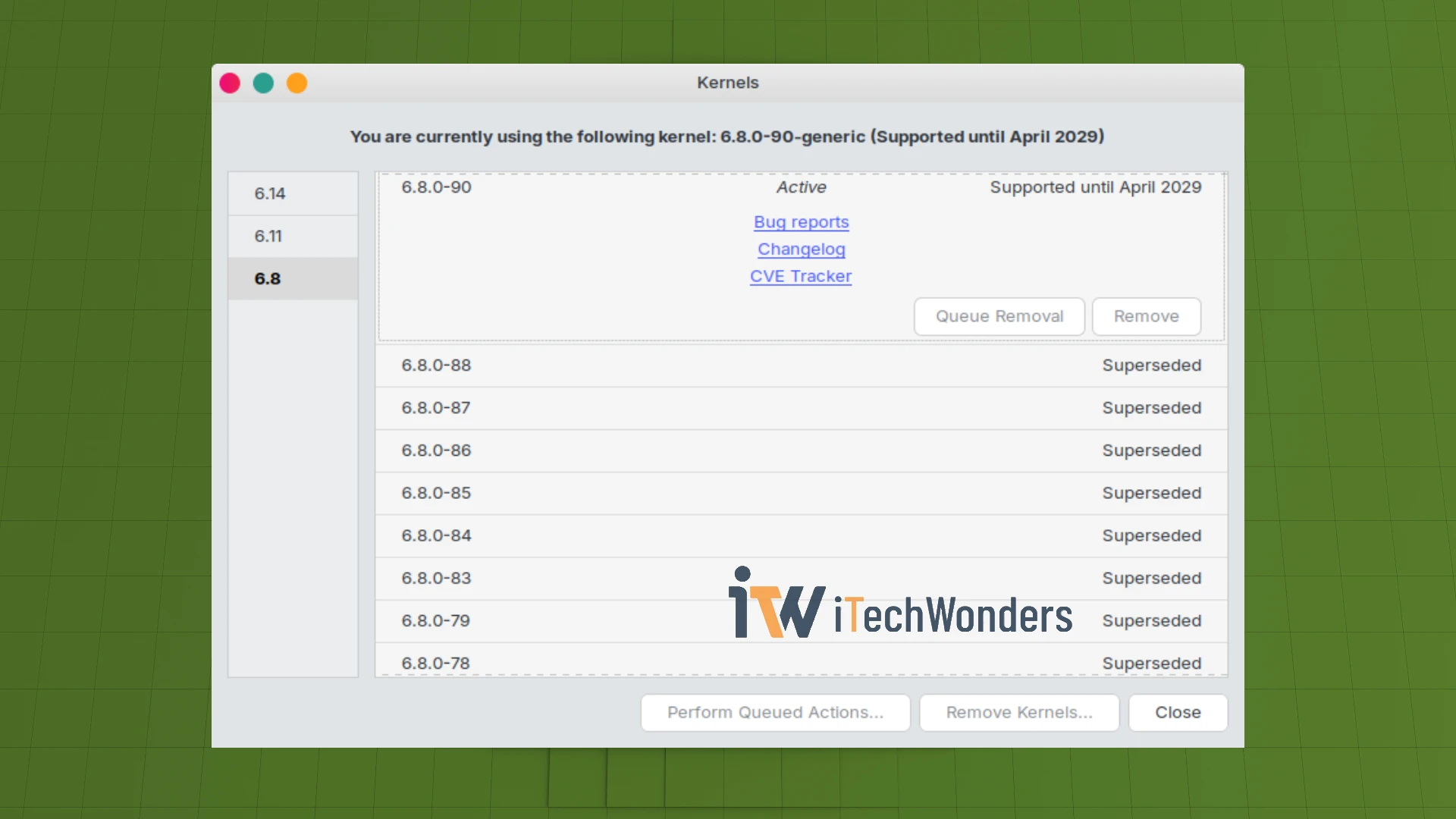
Note: Once you’ve confirmed 6.8 is working, here you can use the Linux Kernels tool to remove the 6.14 kernel entirely so the system defaults to 6.8.
Personally, I prefer using the command line. To remove all traces of kernel 6.14:
# List installed kernels
dpkg -l | grep linux-image
# Remove kernel 6.14 packages
sudo apt remove --purge linux-image-6.14.* linux-headers-6.14.*
After removal, update GRUB and reboot. Mint will automatically boot into the next available kernel:
sudo update-grub
sudo reboot
Step 4: Install NVIDIA Driver 470
Now that we are on a compatible kernel, we can finally install the driver.
Prepare the System
First, check whether your system already has 32‑bit (i386) architecture enabled:
dpkg --print-foreign-architectures
If i386 is not listed, add 32-bit architecture support (required for Steam and some other applications):
sudo dpkg --add-architecture i386
If i386 is already present, you can skip this step.
Also, to display the machine hardware architecture:
uname -m
→ This prints the machine hardware name (e.g., x86_64, i686, aarch64, armv7l).
If you need the Debian/Ubuntu package architecture name — the system’s primary package architecture where apt looks for packages — use:
dpkg --print-architecture
However, for the GT 750M, which runs on Intel hardware, this command is usually unnecessary. Still, it’s useful to know. xD
Note: On a 64‑bit machine installing Steam (32‑bit), you’ll typically see dpkg --print-architecture return amd64 and dpkg --print-foreign-architectures return i386 if you’ve added 32‑bit support. That’s the full, ready combo you would want here.
Now, update your package lists — which is very important:
sudo apt update && sudo apt upgrade -y
Verify Package Availability
Check that the nvidia-driver-470 package is available:
apt policy nvidia-driver-470
Install the Driver
Install the NVIDIA driver 470:
sudo apt install nvidia-driver-470
This command automatically pulls in all necessary dependencies, including nvidia-dkms-470, nvidia-kernel-common-470, nvidia-utils-470, and required OpenGL libraries.
Critical warning: NEVER install drivers using just apt-get install nvidia-driver or ubuntu-drivers autoinstall for the GT 750M. The generic nvidia-driver package installs the latest driver designed for current-generation GPUs, which won’t work with your legacy Kepler card. You must specifically install either nvidia-driver-390 or nvidia-driver-470.
Verify DKMS Build Success
After installation completes, check that the modules built successfully:
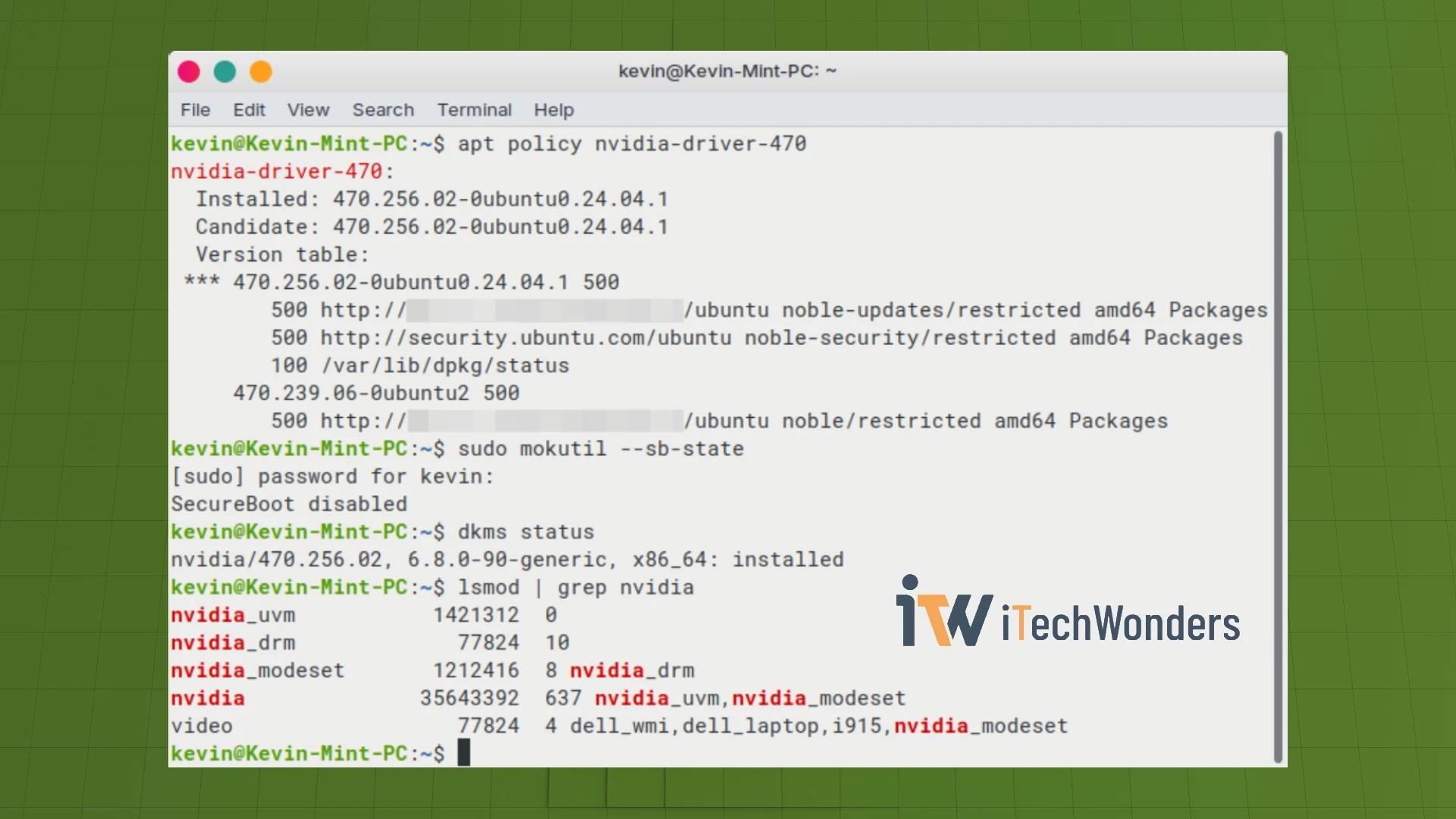
dkms status
Expected output result:
nvidia/470.256.02, 6.8.0-90-generic, x86_64: installed
If you only see “added” or “built” without “installed,” there’s a problem that needs to be addressed.
If you switched kernels after a successful DKMS build on another kernel version
You may need to rebuild DKMS for the new kernel you’re currently running using sudo dpkg-reconfigure nvidia-dkms-*, for instance:
sudo dpkg-reconfigure nvidia-dkms-470
sudo dkms autoinstall
sudo update-initramfs -u
The dpkg-reconfigure command usually succeeds if the system previously built DKMS successfully on a related kernel version (for example, switching from 6.8.0-060800 to 6.8.0-90-generic should work since both are in the 6.8.0 family).
After that, verify the rebuild by inspecting the DKMS directory:
ls -l /var/lib/dkms/nvidia
If you see a folder named something like kernel-6.8.0-90-generic-x86_64, the module was rebuilt and installed successfully.
But if DKMS still fails
Try completely removing and reinstalling the driver:
sudo apt purge 'nvidia-*'
sudo apt autoremove
sudo apt autoclean
sudo apt install nvidia-driver-470
sudo reboot
Verify Module Loading
Ensure the NVIDIA kernel modules are loaded:
lsmod | grep nvidia
You must see:
nvidia
nvidia_drm
nvidia_modeset
Final Reboot and Verification
Reboot your system again if not yet:
sudo reboot
After rebooting, test that the NVIDIA driver is active:
nvidia-smi
If everything worked, you’ll see information about your GeForce GT 750M, including the driver version (470.xxx) and CUDA version.
To monitor GPU usage in real-time:
watch -n 1 'lsmod | grep nvidia'
watch -n 1 nvidia-smi
To stop and exit watch, simply press: Ctrl + C.
Verify OpenGL Renderer
Check that OpenGL is using the NVIDIA GPU:
glxinfo | grep "OpenGL renderer"
You should see something like this:
OpenGL renderer string: NVIDIA GeForce GT 750M/PCIe/SSE2
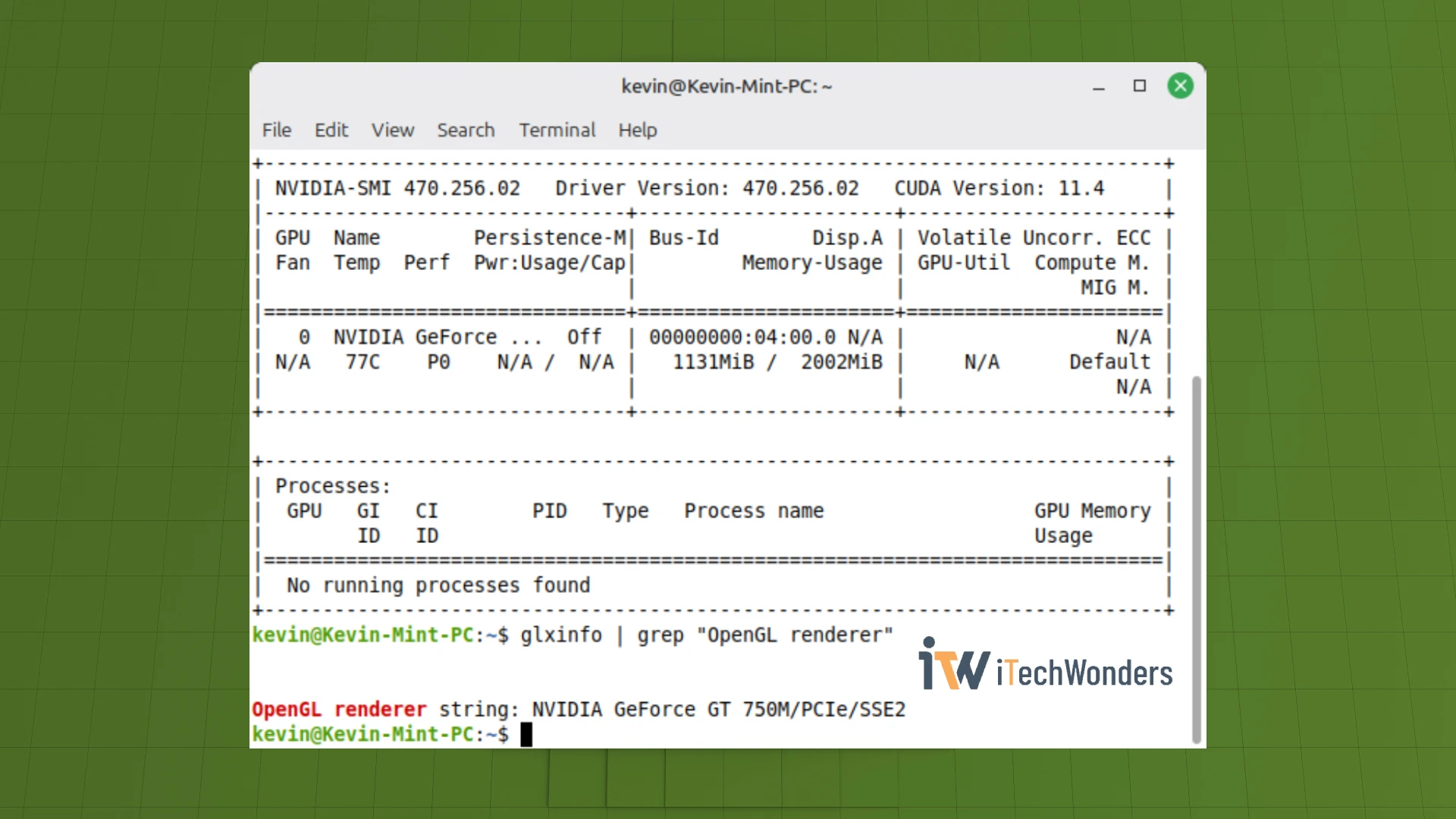
If you see “Mesa” or “llvmpipe,” the NVIDIA driver isn’t being used for rendering (or there’s currently no task utilizing it).
Check OpenGL Version
Once glxinfo is working, check the OpenGL version:
glxinfo | grep "OpenGL version"
Expected output:
OpenGL version string: 4.6.0 NVIDIA 470.256.02
For more detailed OpenGL information:
glxinfo | grep -i opengl
At this point, your NVIDIA GT 750M driver is installed and functioning. In the next part, we will optimize the configuration for laptop hybrid graphics systems, configure PRIME profiles for the best balance of performance and battery life, and test your setup with real-world applications including Steam games. We will also cover advanced topics like persistence mode and troubleshooting techniques for edge cases.
Part 2: Optimization and Advanced Configuration
We successfully installed kernel 6.8 and the NVIDIA driver 470 on Linux Mint 22, getting the GeForce GT 750M recognized and operational. Now we’re going to optimize this setup for real-world use, particularly for laptop systems with hybrid Intel and NVIDIA graphics. These optimizations will dramatically improve battery life while maintaining excellent performance when you need it.
So let’s continue!
Step 5: Optimize for Laptop Dual-GPU Systems (PRIME)
This section is crucial for laptops with both Intel integrated graphics and NVIDIA discrete graphics (e.g. Dell Inspiron 7537).
Check and Set PRIME Profile
PRIME (PRogramming Interface for Media Enterprises) manages switching between your Intel and NVIDIA GPUs. Check your current profile:
prime-select query
Available modes include:
- intel: Uses Intel iGPU only (maximum battery life, lower performance)
- nvidia: Uses NVIDIA GPU exclusively (maximum performance, high power consumption)
- on-demand: Hybrid mode (recommended for most users)
For the best balance of performance, stability, and power efficiency on laptops with hybrid graphics, use on-demand mode:
sudo prime-select on-demand
sudo reboot
Alternatively, you can configure this through the GUI by opening NVIDIA X Server Settings from your application menu.
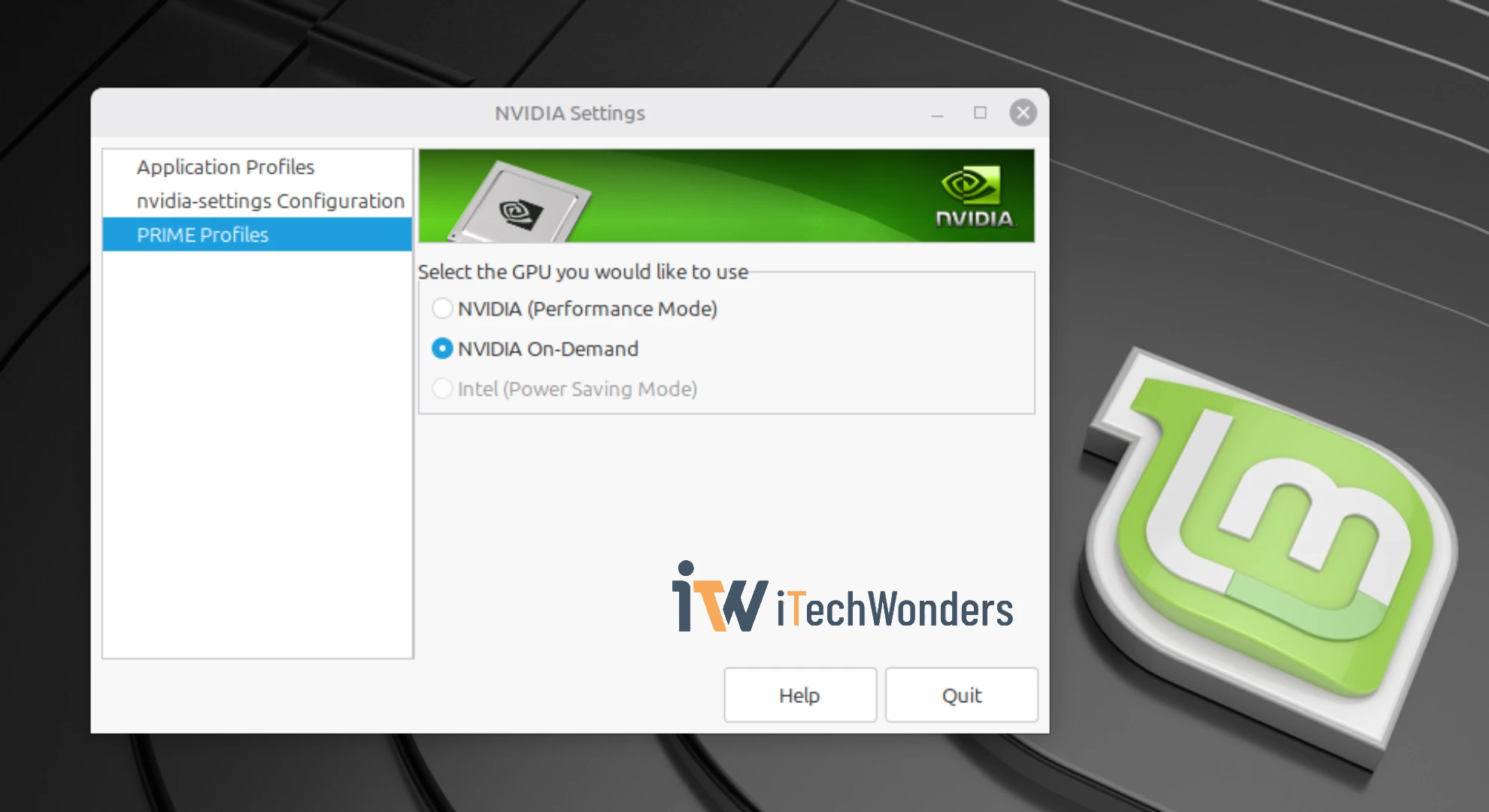
In on-demand mode, Intel handles the desktop environment while NVIDIA only activates when applications specifically request it. This is the optimal mode for older NVIDIA GPUs like the GT 750M, providing the coolest temperatures and fewest bugs.
Note: In Linux Mint, you can always force individual applications to use the discrete GPU by right-clicking their icon and selecting “Run with dedicated GPU”.
Performance Mode (Optional)
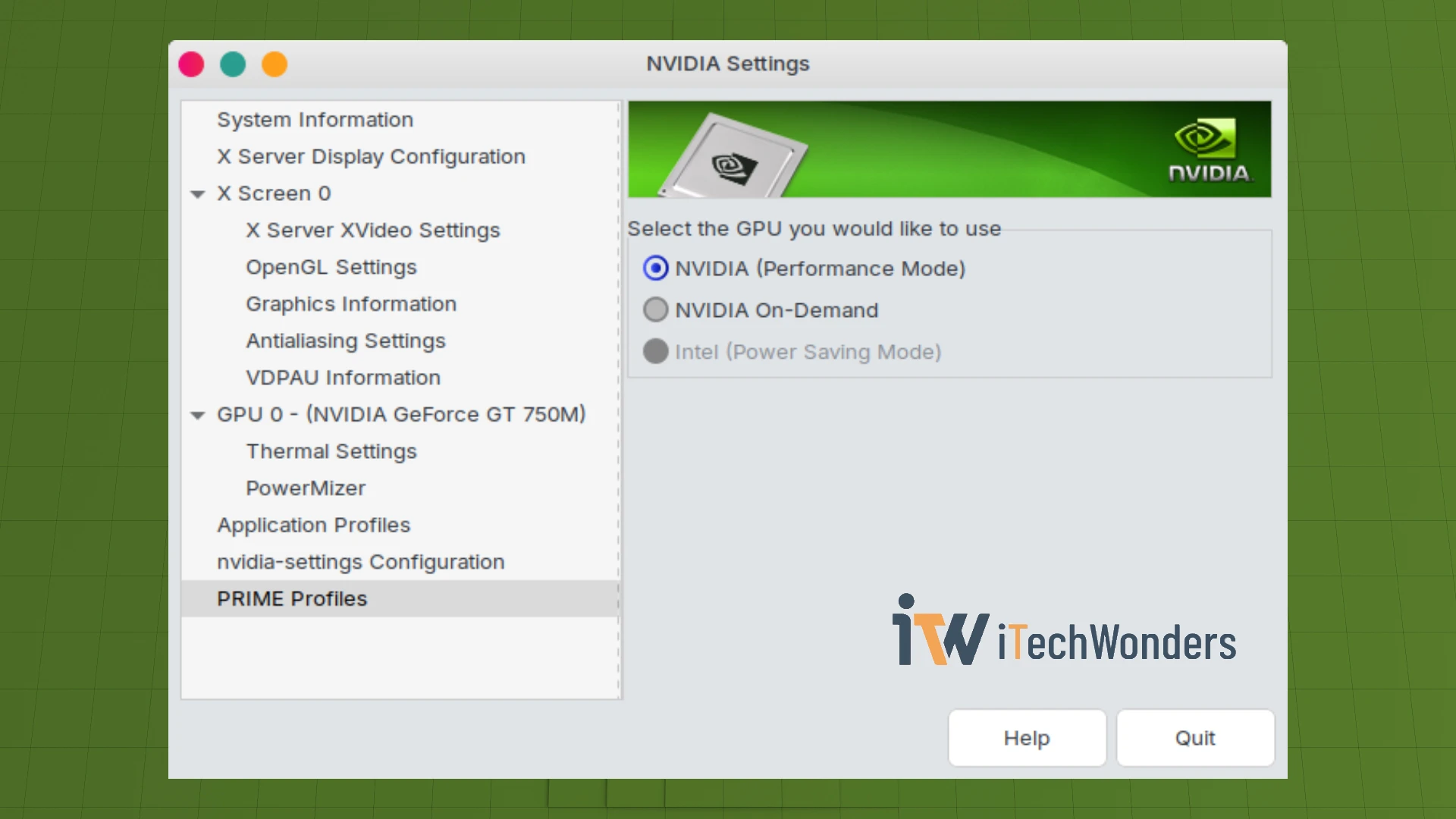
If you want maximum graphics performance and don’t care about battery life (perhaps your laptop is always plugged in), you can force the NVIDIA GPU to handle all graphics tasks:
sudo prime-select nvidia
sudo reboot
In this mode, all graphical applications (desktop compositor, browser, games) run through the NVIDIA GPU instead of Intel’s iGPU. This maximizes the GT 750M’s capabilities but significantly increases power consumption.
After switching to nvidia mode, NVIDIA Settings will display more detailed information:
Test Application Rendering
If you still don’t have development tools and OpenGL utilities installed, set them up first:
sudo apt install mesa-utils vulkan-tools
Test OpenGL rendering:
glxinfo | grep "OpenGL renderer"
# or
glxgears
To test render offload in on-demand mode, force an application to use the NVIDIA GPU, such as:
__NV_PRIME_RENDER_OFFLOAD=1 __GLX_VENDOR_LIBRARY_NAME=nvidia glxgears
If the frame rate is high, the NVIDIA GPU is working correctly.
Note that glxinfo will only show NVIDIA as the renderer when you run it with offload environment variables or when prime-select is set to nvidia. In on-demand mode, verify NVIDIA rendering with:
__NV_PRIME_RENDER_OFFLOAD=1 __GLX_VENDOR_LIBRARY_NAME=nvidia glxinfo | grep "OpenGL renderer"
Expected output:
OpenGL renderer string: NVIDIA GeForce GT 750M/PCIe/SSE2
Benchmark with glmark2
For a more intensive graphics test:
# install
sudo apt install glmark2
# run
__NV_PRIME_RENDER_OFFLOAD=1 __GLX_VENDOR_LIBRARY_NAME=nvidia glmark2
Check Kernel Logs for Errors
If you encounter issues, check the kernel logs:
dmesg | grep -i nvidia
journalctl -b | grep -i nvidia
Force Steam Games to Use NVIDIA
To ensure a Steam game always runs on the NVIDIA GPU, go to the game’s Properties > General > Launch Options and add:
__NV_PRIME_RENDER_OFFLOAD=1 __GLX_VENDOR_LIBRARY_NAME=nvidia %command%
For better Vulkan support, you can also try:
__NV_PRIME_RENDER_OFFLOAD=1 __GLX_VENDOR_LIBRARY_NAME=nvidia __VK_LAYER_NV_optimus=NVIDIA_only VK_ICD_FILENAMES=/usr/share/vulkan/icd.d/nvidia_icd.json %command%
Alternatively, launch Steam itself with these environment variables (this often works better as all child processes inherit them):
__NV_PRIME_RENDER_OFFLOAD=1 __GLX_VENDOR_LIBRARY_NAME=nvidia __VK_LAYER_NV_optimus=NVIDIA_only VK_ICD_FILENAMES=/usr/share/vulkan/icd.d/nvidia_icd.json steam
Note: These environment variables are only necessary when using on-demand mode. If you’ve set PRIME to nvidia (Performance Mode), they’re not needed.
Optional: Persistence Mode
Persistence Mode keeps the GPU driver loaded and ready, reducing latency when starting GPU processes. However, for laptops using PRIME with on-demand mode, this is not recommended because:
- The GPU stays active constantly, increasing power consumption
- Battery life suffers significantly
- Generates more heat even when idle
- Provides no benefit for desktop use
- Contradicts the philosophy of on-demand mode, which activates the GPU only when needed
That said, if you have a specific reason to use it:
sudo nvidia-smi -pm 1
To check if it’s enabled:
nvidia-smi -q | grep -i "Persistence Mode" -A1
Persistence Mode is primarily useful for servers, workstations, and professional computing scenarios (Deep Learning, CUDA batch jobs, HPC, render farms, Slurm, Kubernetes, Docker GPU deployments) where it reduces overhead and improves stability for continuous, latency-sensitive workloads.
Why mention it in a laptop guide? Simply to document the option for those who might need it, and as a reminder for myself. Sometimes you need to use a laptop for professional GPU computing tasks, though it’s not the typical use case.
Troubleshooting Common Issues
Even with careful attention to each step, you may encounter specific issues during installation or configuration. Here are solutions to the most common problems when working with the GT 750M or Kepler GPUs on modern Linux distributions.
DKMS shows “added” or “built” but not “installed”
uname command. If you are running a different kernel, reboot and select 6.8 from the GRUB menu. If you are already on kernel 6.8, try forcing a rebuild by removing the DKMS module and reconfiguring the driver package. This usually resolves the issue by ensuring DKMS builds specifically for your active kernel.
nvidia-smi returns “NVIDIA-SMI has failed because it couldn't communicate with the NVIDIA driver”
The “Driver Manager” or “Additional Drivers” tool still shows no NVIDIA drivers available
nvidia-driver-470 manually through the terminal as described in this guide. The command-line installation method bypasses the automatic detection system and forces installation of the specific driver version you need.
Performance is poor or frame rates are lower than expected
on-demand mode requires explicit offload variables, while nvidia mode uses the discrete GPU for everything. Choose the mode that matches your performance and battery life priorities.
System freezes or crashes after installing the NVIDIA driver
Conclusion
You’ve now successfully installed and configured the NVIDIA GeForce GT 750M on Linux Mint 22. While getting legacy Kepler GPUs working on modern Linux distributions requires some extra effort, the combination of kernel 6.8 and driver 470 provides a stable, well-supported configuration that will serve you well for years to come.
The key takeaways from this guide are:
- Legacy Kepler GPUs like the GT 750M require specific kernel versions (6.8) to work with modern Linux distributions
- The nvidia-driver-470 package offers better performance than 390 for these legacy cards
- PRIME’s on-demand mode provides the best balance for laptop users
- Secure Boot must be disabled for unsigned kernel modules to load
- DKMS must successfully build modules for the driver to work
Should you run into issues not covered in this guide, check the kernel logs with dmesg and journalctl, and verify that DKMS successfully built the modules with dkms status. The Linux Mint and Ubuntu communities are also excellent resources for troubleshooting.
Thanks for tuning in! If you found this guide useful, consider buying me a coffee — your support helps keep these tutorials coming. Anyway, feel free to leave a comment if you have any questions. 👍
Enjoyed the article?






真没想到现在还有人在 Linux 上用这种显卡。我也正准备在我的笔记本上(使用 Linux Mint)配置 GTX 780M,碰到这篇文章可以说是太幸运了。不过,虽然同属一代,但跟你那块 GT 750M 比起来,我的 GTX 780M 强得多。我看到你之前的文章里提到 NVK 可能支持 Vulkan 1.3,我觉得我的 GPU 可能能用上这点,性能或许还能进一步提升。你好像还没有专门针对它的教程吧?可以写一篇吗?
Yeah, it’s honestly a bit funny that we’re still running these old GPUs in 2026. And you’re right, GTX 780M is definitely much stronger than GT 750M. It was basically one of the high-end mobile Kepler chips back in the day.
That said, I wouldn’t get my hopes up too much about NVK or Vulkan 1.3 on Kepler yet. Because right now NVK is mainly targeting Turing and newer GPUs where it already has proper Vulkan conformance. Kepler support is still very much a work in progress, and even when it lands it will most likely be limited to Vulkan 1.2 due to hardware limitations. On top of that, the whole Nouveau stack still suffers from things like missing reclocking on many cards, so performance gains aren’t guaranteed.
Another factor is that NVIDIA basically stopped supporting Kepler years ago, so most of the progress we see today is coming from the Mesa/Nouveau community rather than NVIDIA itself. That’s also why my guide focused on the GT 750M / Kepler in general since the setup is pretty similar across most Kepler laptops.
If I ever get access to one of those machines to test on (or get enough reliable data), I might write a dedicated guide for it. Anyway, thanks for visiting and taking the time to leave a comment. Have a nice day!